Guide
Creating a match
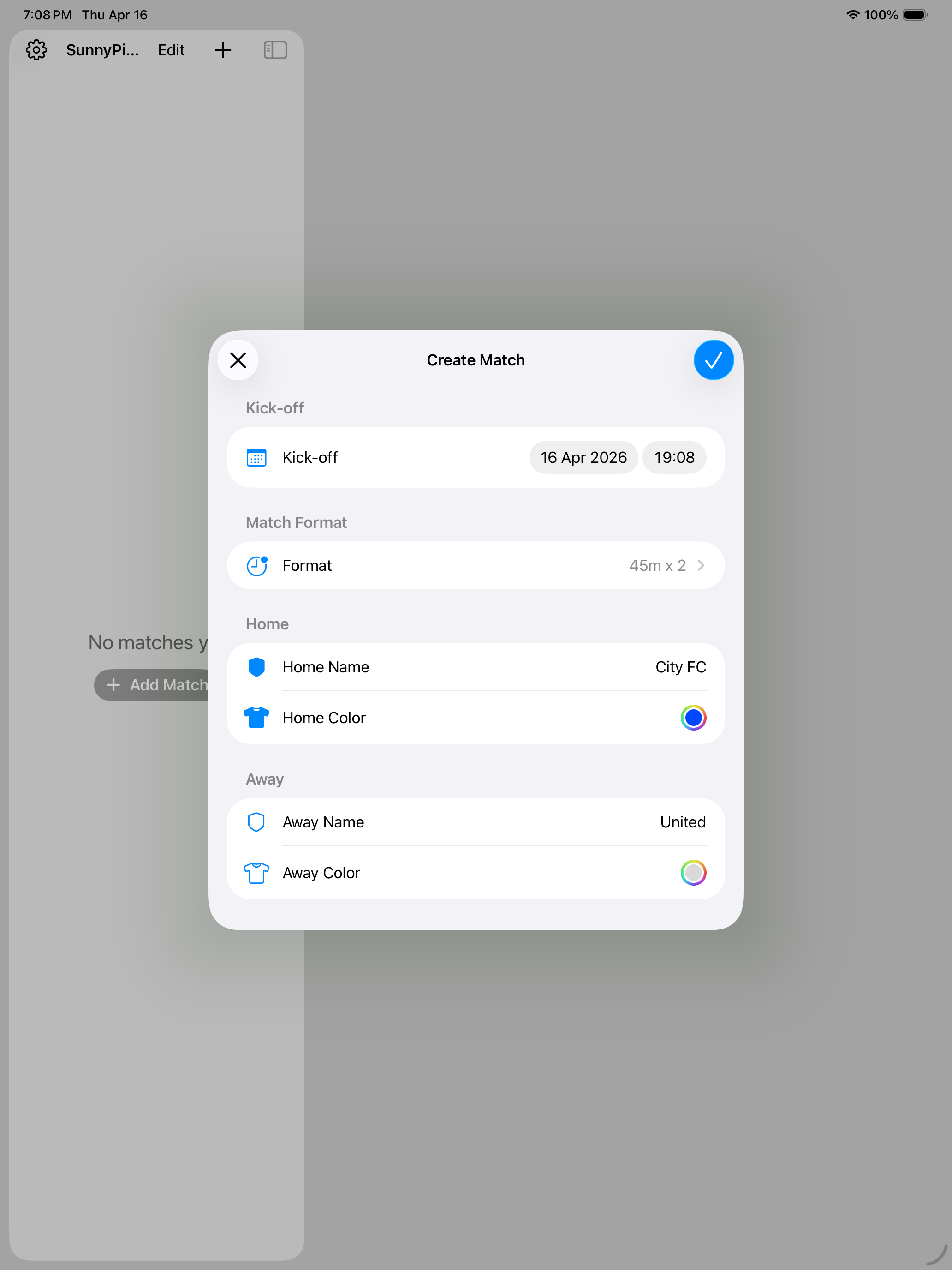
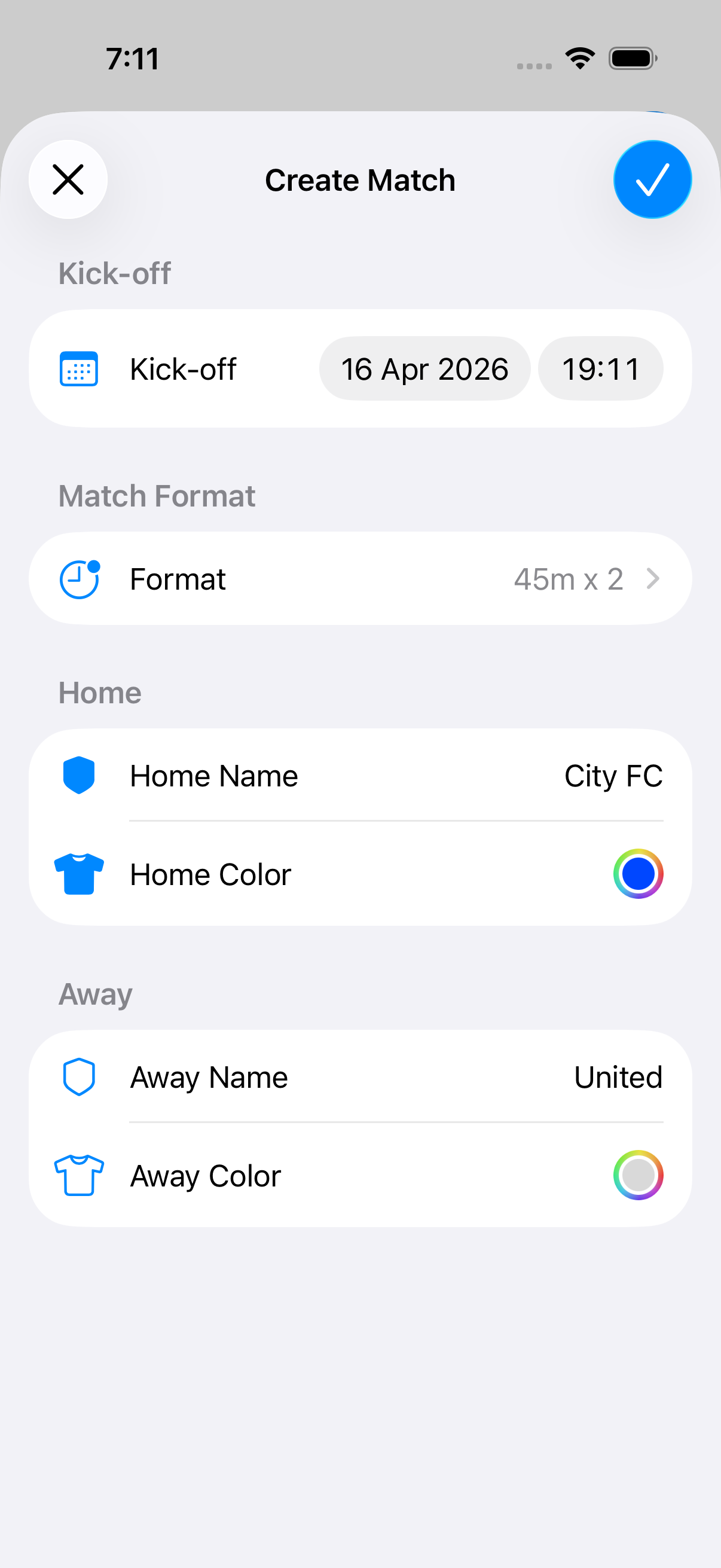
Tap + in the top-right corner of the match list to create a new match. Enter the home and away team names, choose their colours, set the kick-off time, and select a match format. Tap Done when you’re ready.
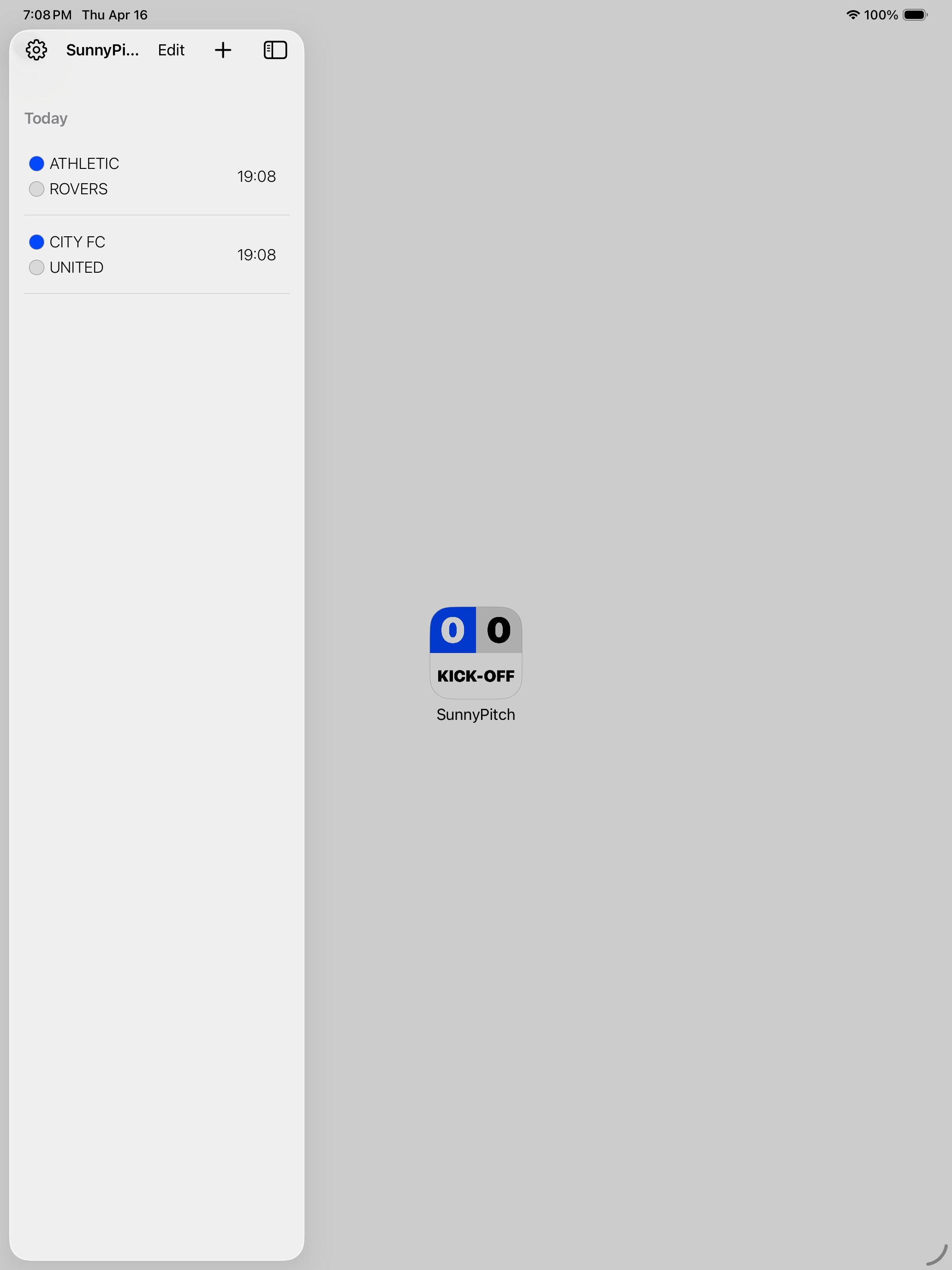
To reuse the same teams and format as a previous match, long-press any match in the list and tap Make a new match like this.
Running the match
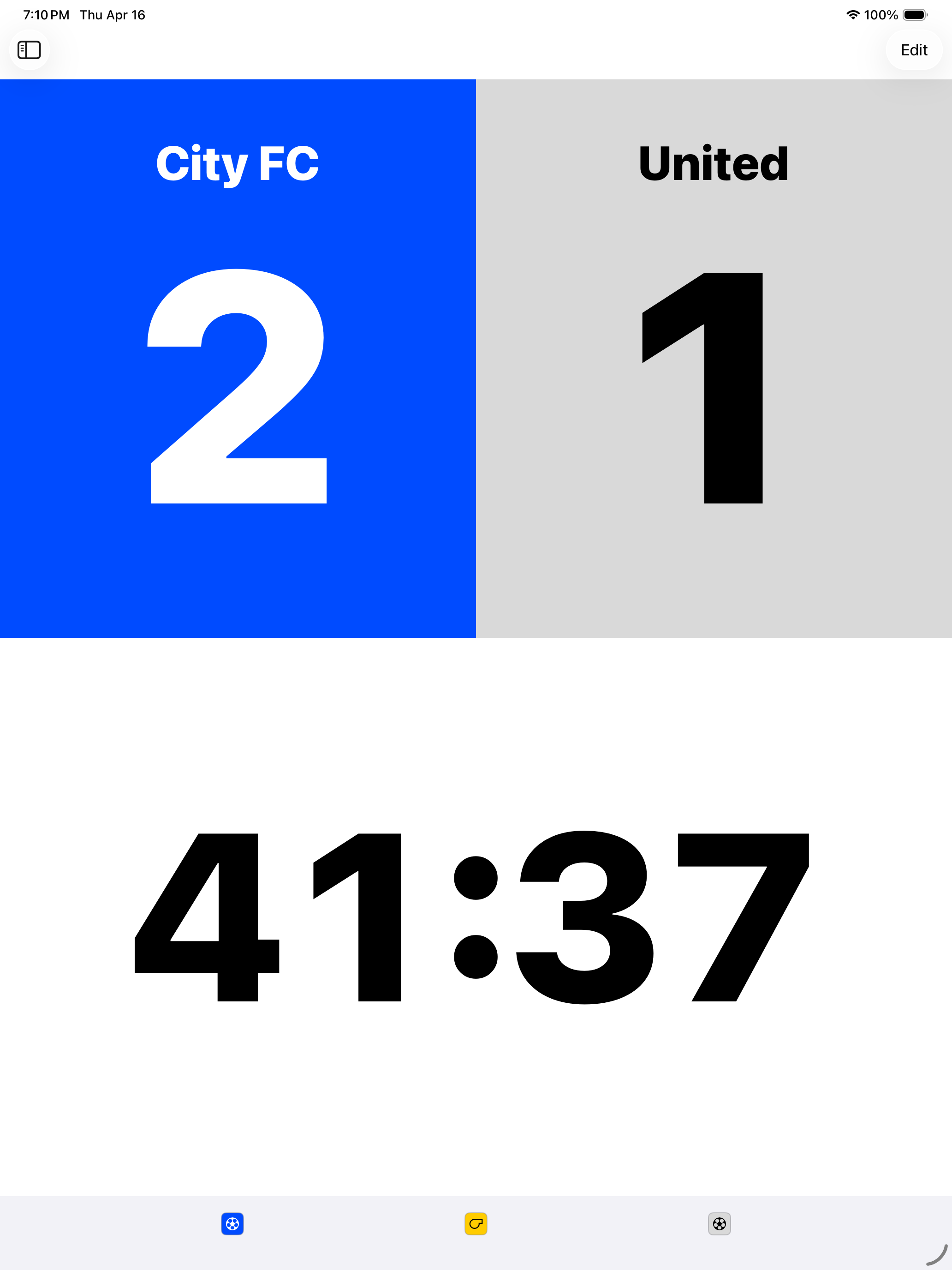
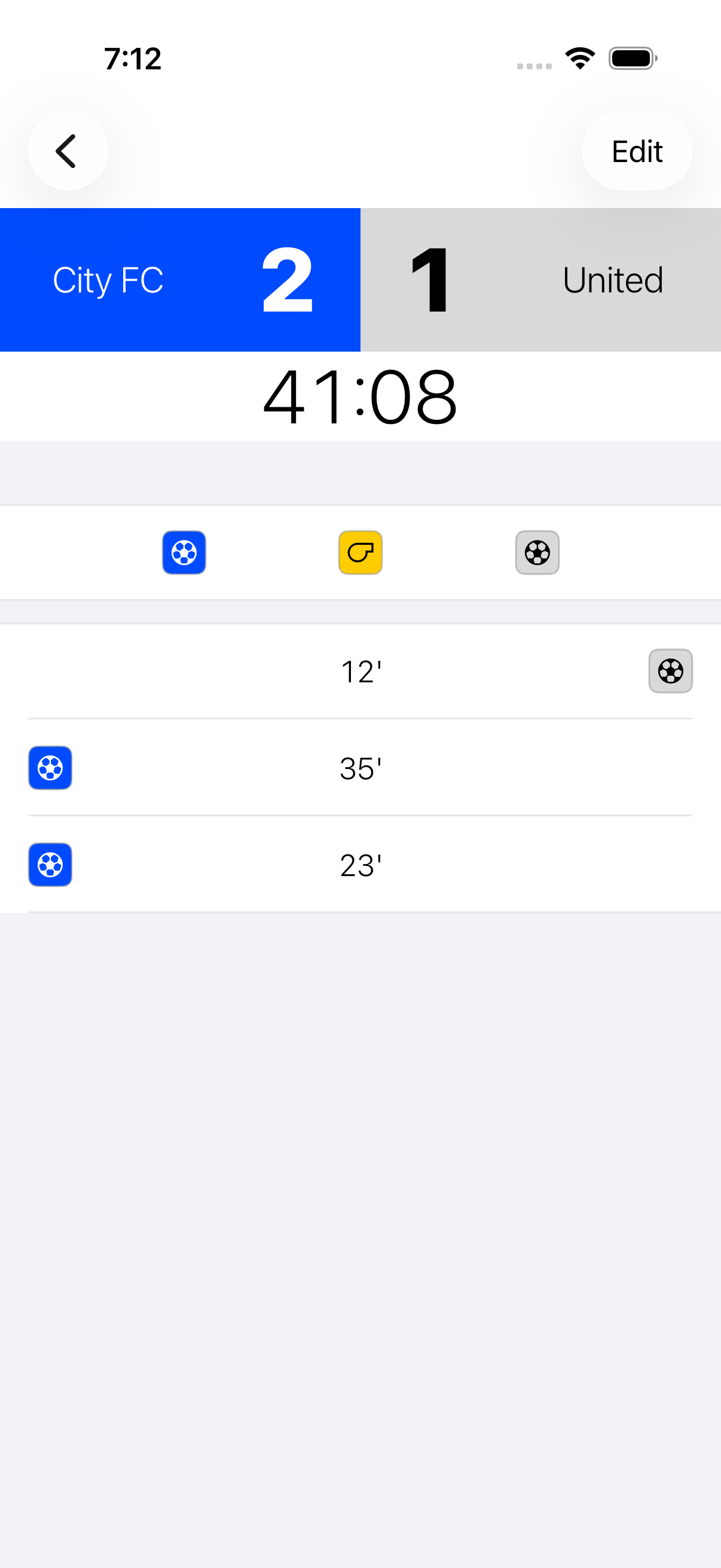
The scoreboard screen has three sections:
- Score areas (left and right) — one per team, in their colours
- Timer — shows the current period and elapsed time
- Control strip (bottom, portrait mode only) — whistle and goal buttons
Tap the whistle button to start the clock. The period name and timer will appear immediately.
Tap the ball button on either side to record a goal. The score updates instantly.
Double-tap a score area to remove the last goal for that team.
When regulation time is up, you’ll receive a notification. Tap the whistle again to end the period. The next period will follow automatically — half-time, second half, and so on until full-time.
Using the iPad as a display
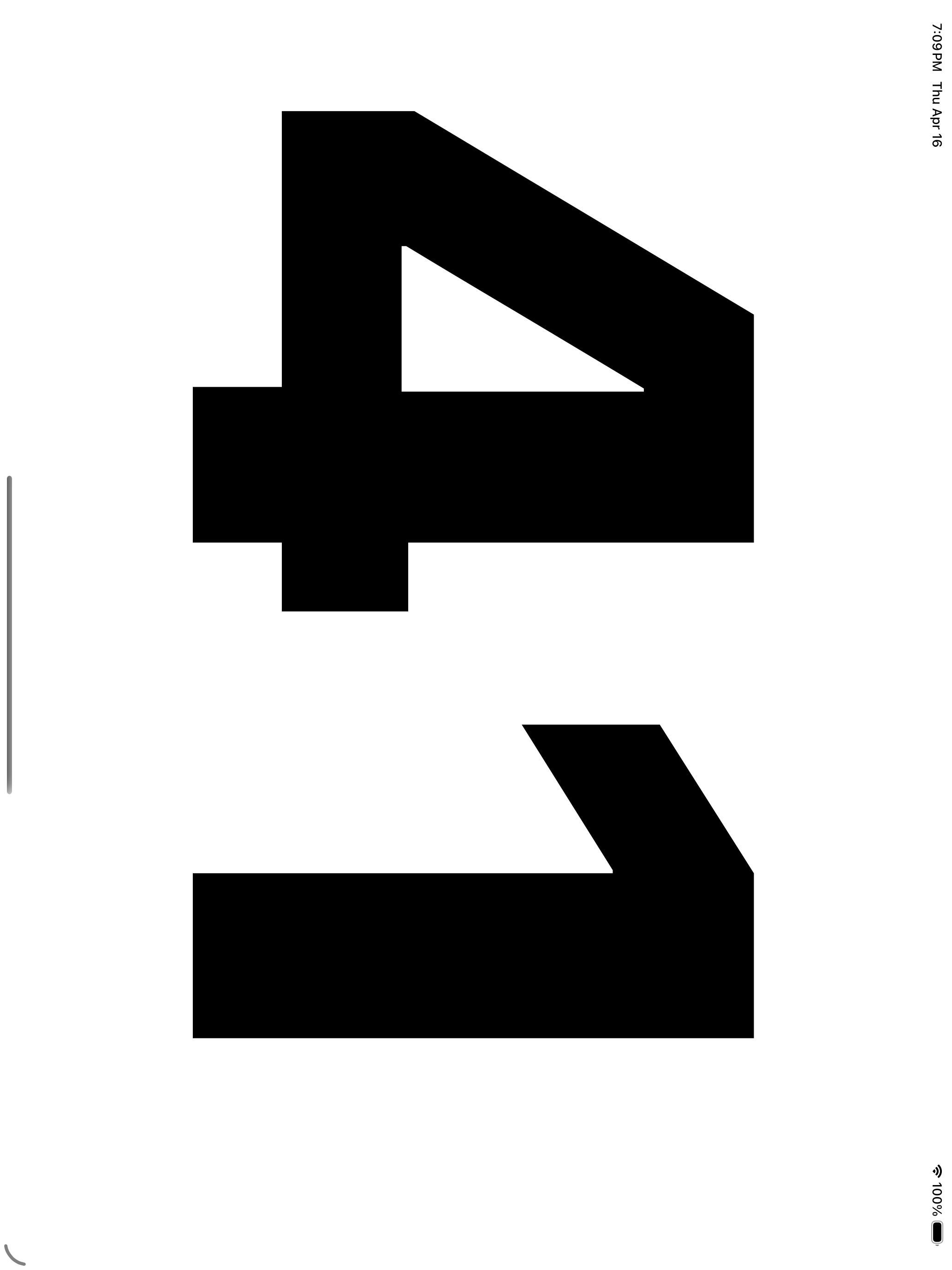
Rotate the iPad to landscape and the scoreboard switches to full-screen display mode — no navigation bar, maximum visibility. Place it on the touchline, in the clubhouse window, or anywhere supporters can see it.
The screen alternates between the score view and the timer view every few seconds, so the clock is always visible.
Screen brightness is automatically raised to maximum and the display is kept on while the scoreboard is open.
Two-device setup
Use Display Mode when one device controls the match and another device acts as the scoreboard display.
- Open the match on the device you want to use as the controller.
- Open the same match on the display device.
- On the display device, open Settings and turn on Display Mode.
- Leave the display device in landscape for the full-screen scoreboard. Use the controller in portrait to run the match.
Changes made on the controller sync to the display device via Firebase.
When a display device connects, it appears in Settings > Remote Devices on the controller. If a display is facing the opposite touchline or mounted on the other side of the pitch, tap Flip for that device to swap the home and away sides on that display only.
Penalty shootout
If your match format includes a penalty shootout, the coin toss screen will appear after the final whistle. Tap the coloured button for the team that shoots first.
The shootout screen then shows a grid for each side. Tap ✓ for a scored penalty and ✗ for a miss. The shootout ends automatically when a winner is mathematically certain.
Settings
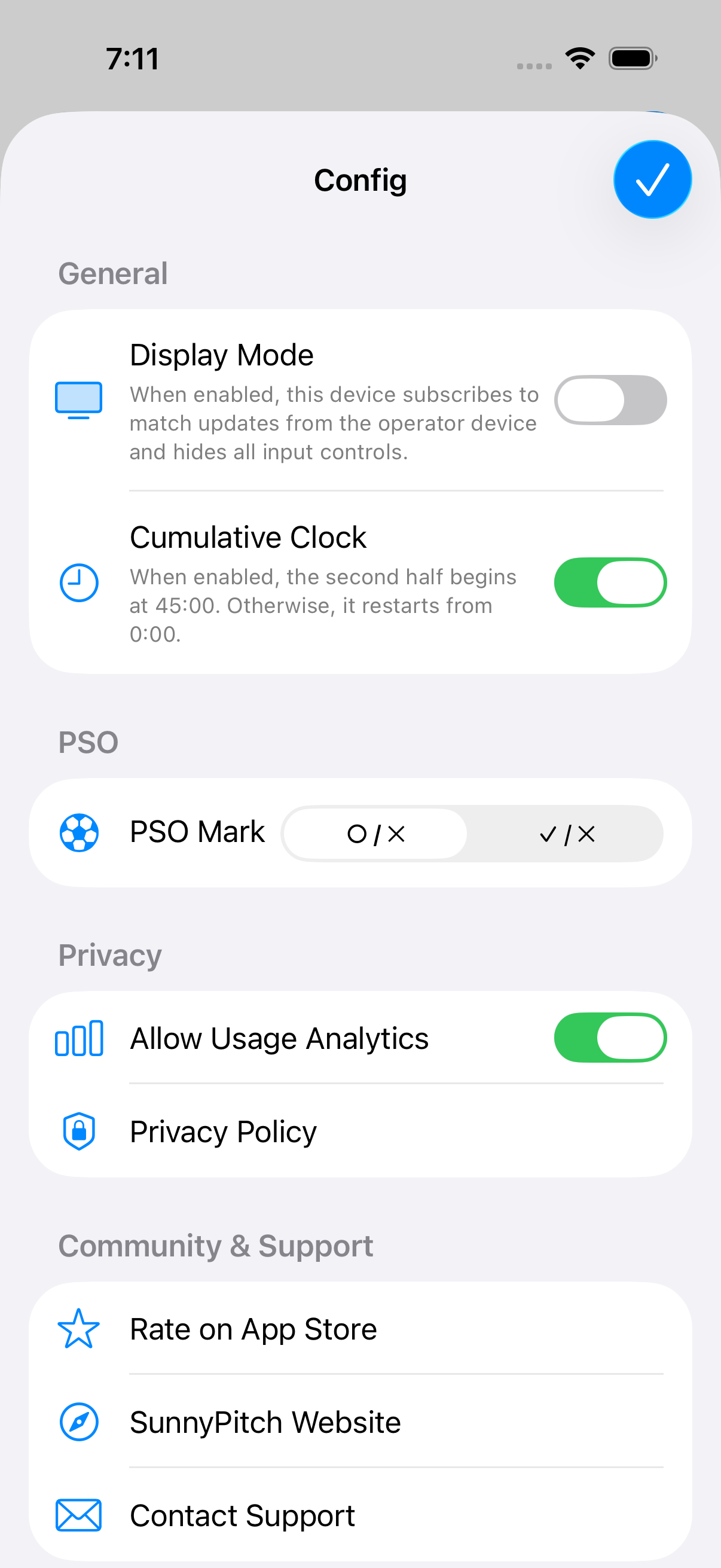
Tap the gear icon in the top-left corner to open settings.
| Setting | What it does |
|---|---|
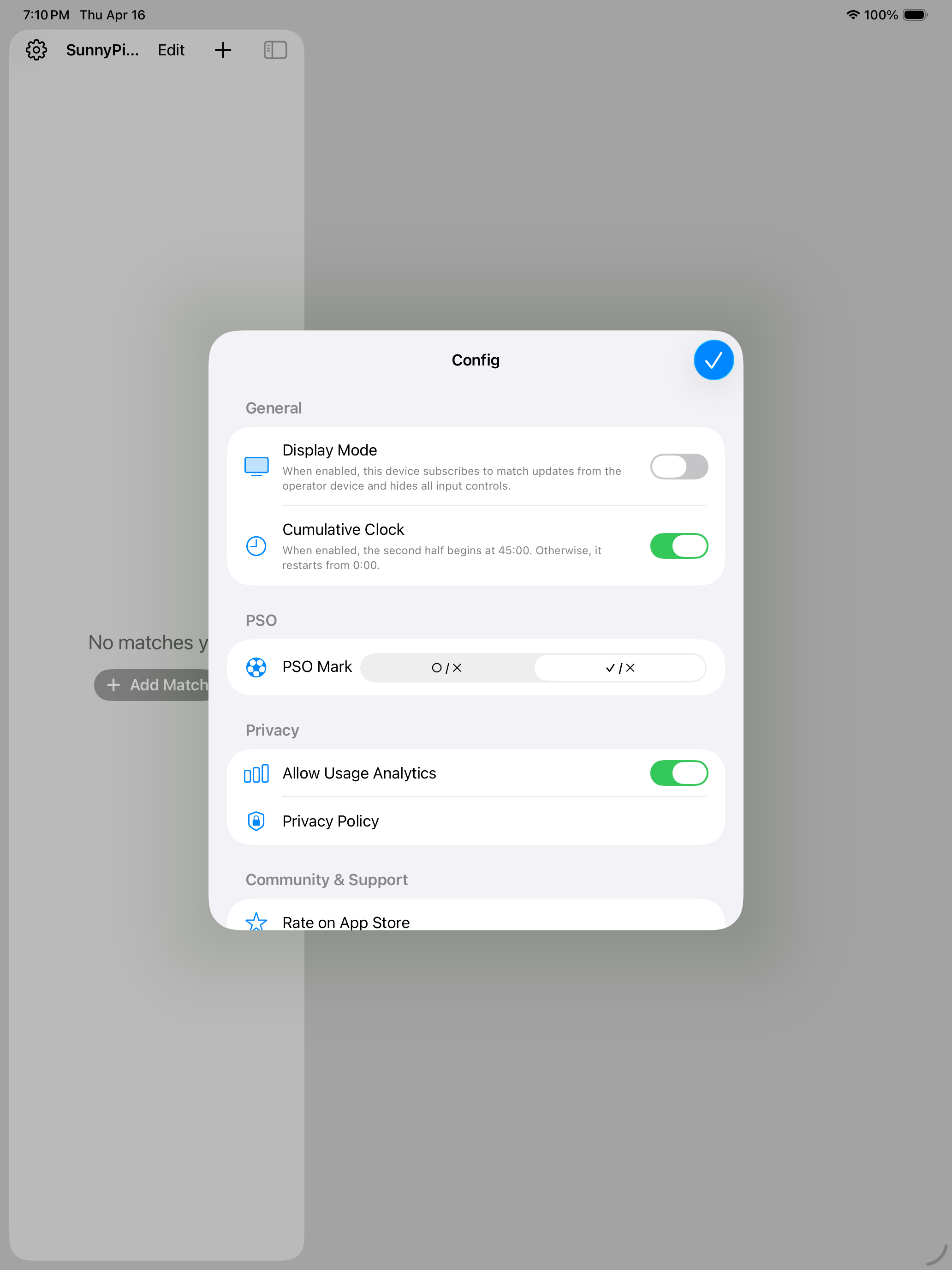
| Display Mode | Switches this device to display-only: it subscribes to match updates from the operator device and hides all input controls. |
| Remote Devices | Shows display devices connected to matches you are broadcasting. Use Flip to swap home and away on an individual display. |
| Cumulative Clock | When on, the second half begins at 45:00. When off, it restarts from 0:00. |
Tips
- Swap sides manually: Drag either team’s score area onto the other side to swap them. The app also does this automatically at half-time.
- Edit a match: Tap Edit in the scoreboard toolbar to correct team names, the format, or individual log entries.
- Delete a match: Swipe left on a match in the list, or tap Edit in the list toolbar to delete multiple matches at once.